Thursday, February 4, 2016

Limitations with FetchXML


1.      RIGHT OUTER JOIN is not supported.

2.      You can't compare two fields directly. For instance, you won't be able to find an      equivalent query for the following SQL script:


SELECT * FROM account
WHERE telephone1 <> telephone2


SELECT a.* FRM entity1 a
INNER JOIN entity2 b ON a.entity1id = b.entity1id
WHERE a.name = '123' OR b.name = '123'

3.      The right side of the comparison has to be a constant value.

4.      You can't have OR condition across entities. For instance, the following SQL query is not supported by FetchXML.

5.      If you ever have to do so, you would have to break the query into two, and get the results by issuing two queries against CRM server separately, then merge the result set.

6.      You can't use SQL functions in FetchXML query. CRM has support for some built-in functions, but any additional SQL functions are not supported.

7.      No support of UNIONs (Thanks to Dirk Fabricius for his contribution by commenting below). 

8.      There is no support of a CASE / WHEN structure.

9.      When you issue a FetchXML query, the maximum number of records you get back from CRM server is 5,000 each time. If you want to get more records from CRM server, you would have to use paging cookie.

10.    You can't have more than 10 linked entities in a FetchXML query. It is possible to overcome this limit by creating or updating a QueryLinkEntityLimit setting, however this is generally not recommended. If you ever run into this situation, you would definitely want to re-visit your CRM data model or re-engineer your query.

11.    When you perform an aggregation, the maximum number that will participate in the aggregation will be 50,000 records. For instance, if you do a COUNT aggregation, the maximum value you can get back from CRM is 50,000 even though that you might have more records in the system. This is a by-design behavior which is for performance reason. This can be overcome by updating "AggregateQueryRecordLimit" setting, however it is generally not recommended.

12.    There is no way to use subquery.

Friday, January 29, 2016

How To Create Word Template Inside MS CRM 2016


  1. Settings >> Templates >> Document Template
  2. Create Template from CRM data
  3. Select Entity
  4. Enable Editing
  5. Open Developer Tab
  6. Insert Text Field
  7. To set table master-detail,  just select the row in the table and in XML-Maping select your entity and right click>> insert content table >>Repeating.

Tuesday, December 29, 2015

Modify the Columns Shown in The Inline Lookup-CRM 2013 & 2015


How to modify the columns shown in the inline lookup in CRM 2013 Refreshed Entity User Interface and what can be done and what cannot be done.

image

In the example (lookup to Contact), it shows only Name, Company Name, and Email Address.

You found that Email Address is not important, you want to show Name, City, and Company Name.

Explanation:

1. Go to Form Editor

2. Go to the field and check the lookup that is used, in this case is Contact view (lookup view) and get the Default View of the Lookup field

image

*You can also use custom view as default view.

image

3. Go to the Contact Lookup View and then you add can re-order the position

Previously:

image

Change to:

image

*You cannot modify the Full Name position nor remove it.

4. Test the Result:

image

*The supported total column shown in the inline lookup is 3 only (including Name as the primary field that is not replaceable)

It shows Name, City, and Company Name as per your expectation.

5. You can also use a Composite field, for example, Address

image

Result:

image

And you can get the tooltip.

image

6. But, you cannot use to show field from related entity.

Example:

image

Order: Name, City, Industry of the Account, Company Name

Result:

image

You should ‘Look Up More Records’

image

Activate – Deactivate Record using JavaScript in CRM


Activate – Deactivate Record using JavaScript in CRM


//Params:entityname,entityGuid,stateCode,StatusCode
// Call the funtion
changeRecordStatus("contact", Xrm.Page.data.entity.getId(), 1, 2);


function changeRecordStatus(EntityLogicalName, RECORD_ID, stateCode, statusCode) {

    // create the SetState request

    var request = "<s:Envelope xmlns:s=\"http://schemas.xmlsoap.org/soap/envelope/\">";

    request += "<s:Body>";

    request += "<Execute xmlns=\"http://schemas.microsoft.com/xrm/2011/Contracts/Services\" xmlns:i=\"http://www.w3.org/2001/XMLSchema-instance\">";

    request += "<request i:type=\"b:SetStateRequest\" xmlns:a=\"http://schemas.microsoft.com/xrm/2011/Contracts\" xmlns:b=\"http://schemas.microsoft.com/crm/2011/Contracts\">";

    request += "<a:Parameters xmlns:c=\"http://schemas.datacontract.org/2004/07/System.Collections.Generic\">";

    request += "<a:KeyValuePairOfstringanyType>";

    request += "<c:key>EntityMoniker</c:key>";

    request += "<c:value i:type=\"a:EntityReference\">";

    request += "<a:Id>" + RECORD_ID + "</a:Id>";

    request += "<a:LogicalName>" + EntityLogicalName + "</a:LogicalName>";

    request += "<a:Name i:nil=\"true\" />";

    request += "</c:value>";

    request += "</a:KeyValuePairOfstringanyType>";

    request += "<a:KeyValuePairOfstringanyType>";

    request += "<c:key>State</c:key>";

    request += "<c:value i:type=\"a:OptionSetValue\">";

    request += "<a:Value>" + stateCode + "</a:Value>";

    request += "</c:value>";

    request += "</a:KeyValuePairOfstringanyType>";

    request += "<a:KeyValuePairOfstringanyType>";

    request += "<c:key>Status</c:key>";

    request += "<c:value i:type=\"a:OptionSetValue\">";

    request += "<a:Value>" + statusCode + "</a:Value>";

    request += "</c:value>";

    request += "</a:KeyValuePairOfstringanyType>";

    request += "</a:Parameters>";

    request += "<a:RequestId i:nil=\"true\" />";

    request += "<a:RequestName>SetState</a:RequestName>";

    request += "</request>";

    request += "</Execute>";

    request += "</s:Body>";

    request += "</s:Envelope>";

    //send set state request

    $.ajax({

        type: "POST",

        contentType: "text/xml; charset=utf-8",

        datatype: "xml",

        url: Xrm.Page.context.getServerUrl() + "/XRMServices/2011/Organization.svc/web",

        data: request,

        beforeSend: function (XMLHttpRequest) {

            XMLHttpRequest.setRequestHeader("Accept", "application/xml, text/xml, */*");

            XMLHttpRequest.setRequestHeader("SOAPAction", "http://schemas.microsoft.com/xrm/2011/Contracts/Services/IOrganizationService/Execute");

        },

        success: function (data, textStatus, XmlHttpRequest) {

            Xrm.Page.data.refresh(); // refresr current crm form

        },

        error: function (XMLHttpRequest, textStatus, errorThrown) {

            alert(errorThrown);

        }

    });

}

Friday, December 18, 2015

Using New Scripting Methods in CRM 2016

With the release of Dynamics CRM 2016, new client side methods introduced that we can use to make user experience more interactive while enter data in CRM forms. Following are the methods:
getValue
Keypress
Autocomplete

getValue Method – This method is used to get the latest value of the field. Earlier this method was only available in attribute collection, which provides value of the field only after Onchange event fired. Whereas when it is used with control collection, we can capture value as soon as users starts entering value in field, so it means if we have any requirement to validate data entry then we can use this method to make it more interactive. We can use this method like below:


Xrm.Page.getControl(field name).getValue();
Let’s take one example that we want to restrict user to enter only number between 0-9 under phone field in account entity, so we can simply use below code to do that:


function OnTelephone1KeyPress() {
    var phoneValue = Xrm.Page.getControl("telephone1").getValue().toString().replace(/[^0-9]/g, "");
    Xrm.Page.getAttribute("telephone1").setValue(phoneValue);
}
Above code will get character from telephone1 field as soon as user enters it and will replace character with null if it is not under 0 to 9 range. But we need to use above code with keypress events, so let’s understand use of keypress event first to complete our code.
Keypress Method – Below three keypress methods are added to work with controls:
addOnKeyPress – This method is used to associate method to KeyPress event of text or number, so it will fire when user will press any key. We can use this method like below:

1
Xrm.Page.getControl(field name).addOnKeyPress(name of function);
For example if we want to call above method on keypress event of telephone1 field then we can use it like below:
1
Xrm.Page.getControl("telephone1").addOnKeyPress(OnTelephone1KeyPress);
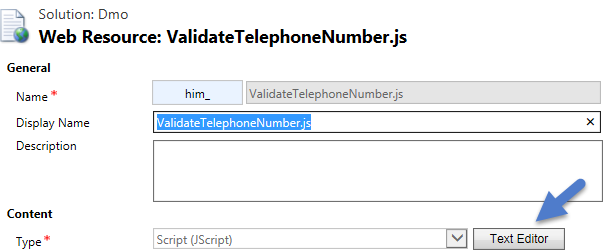
Now let’s deploy this code to CRM, we can create a java script web resource and use below code under text editor:


//validate character
function OnTelephone1KeyPress() {
    var phoneValue = Xrm.Page.getControl("telephone1").getValue().toString().replace(/[^0-9]/g, "");
    Xrm.Page.getAttribute("telephone1").setValue(phoneValue);
}
//add keypress event handler
function AccountOnLoad() {
    Xrm.Page.getControl("telephone1").addOnKeyPress(OnTelephone1KeyPress);
}
clientevent1
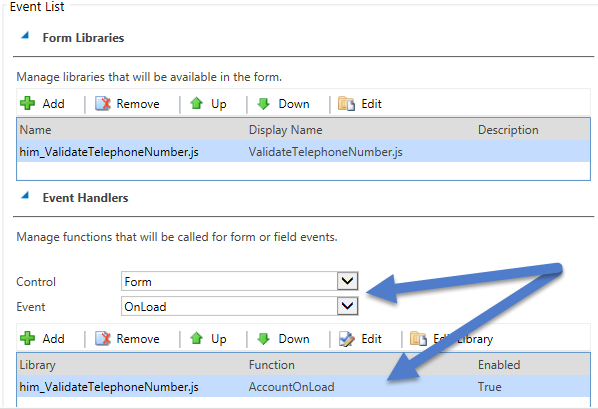
After that we need to attach this web resource to account entity form and need to call AccountOnLoad method OnLoad of account form like below and need save and publish our changes: clientevent2
Now when we will create a new account record or modify existing account record, we will see our code won’t allow us to enter non numeric character under phone field.

removeOnKeyPress – We can use this method to remove KeyPress event handler from the text or number field, that is added using addOnKeyPress method. We can use it like below:
1
Xrm.Page.getControl(arg).removeOnKeyPress(function name)
fireOnKeyPress – We can use this method to call KeyPress event handler for text or number field, we can use it like below:
1
Xrm.Page.getControl(field name).fireOnKeyPress()
Note: All the above methods are only supported for Web and Outlook client.

Wednesday, August 26, 2015

Rename and Delete business units

CRM 2011/2013 allows you to rename and delete business units, this can be very useful if you have spelt something incorrectly.
To rename a business unitSettings –> Administration –> business /units
click on the business unit you want, change the display name and press save
You can also delete a business but you must have one business unit.
to delete one of the child business units you go to business units
Settings –> Administration –> business units
click on the business unit you want to delete.
First you must disable the business unit by going Actions –> disable
you will then be able to delete the business unit

Saturday, August 22, 2015

Plug-in stages

Pre validation

Registered Plug-in run before the form is validated
Useful if you want to implement business logic before the actual validation starts.  i.e., Changes made in plug-in won’t be saved if the validation of the main system plugins complain because the changes are outside the database transaction.
Ex – Some “delete” plug-ins. Deletion cascades happen prior to pre-operation, therefore if you need any information about the child records, the delete plugin must be pre-validation.

Pre -operation

After validation and before the values are saved to the database
Post operation
Plugin will run after the values have been inserted/changed on the database

Example:

If and “update” plug-in should update the same record, it is best practice to use the pre-operation stage and modify the properties. That way the plug-in update is done within same DB transaction without needing additional web service update call.

Database Transactions in Plug-Ins

Plug-ins may or may not execute within the database transaction
You can check if the plug-in is executing in-transaction by reading the ‘IsInTransaction‘ property of IPluginExecutionContext
Stages 20 and 40 are part of the database transaction while stage 10 and 50 may be part of the transaction
If plugin throws an exception, every action done during the transaction will be rollback

Few more Points

Whether a plug-in executes synchronously or asynchronously, there is a 2 minute time limit imposed on the execution of a (message) request.
If the execution of your plug-in logic exceeds the time limit, a Timeout exception is thrown
If a plug-in needs more processing time than the 2 minute time limit, consider using a workflow or other background process
‘Pre-operation’ operations that CRM will do will not be carried out in pre-validation stage.
If you are deleting a record that has many-to-many relationship records with another entity; these relationship records will still be available in pre-validation stage, but not in pre-operation stage.
“Target” entity (i.e., pluginContext.InputParameters[“Target”])
It’s the entity on which plug-in registered
It only contains “dirty” attributes. if you convert to early bound, the value of the unchanged attribute will be null

Get files of last hour in Azure Data Factory

  Case I have a Data Factory pipeline that should run each hour and collect all new files added to the data lake since the last run. What is...